Step by step, for Android TV and Apple TV. OK is the middle button and “hold OK” means holding it for about half a second. On the Apple TV remote, OK is a click on the touch surface, hold OK is a long press, and Back is the ‹ or Menu button.
Android TV and Apple TV
Add a channel to Favourites
Favourites is a group of its own at the top of the list, and it works everywhere: the channel list, the guide and search.
Android TV and Apple TV
In the channel list (outside your own groups), hold OK on the channel. The ★ panel opens and the channel is added to Favourites right away.
In the panel, ▲▼ moves and OK ticks or unticks Favourites and your own groups.
Back closes the panel (it also closes by itself after a few seconds).
Shortcuts: ★ on the info bar while you watch. On Android TV remotes with colour keys, the red key does the same, also in full screen and in the guide.
Android TV and Apple TV
Pin a group to the top
Pinned groups sit at the top under My groups and show as tabs in the TV guide.
Android TV and Apple TV
In the channel list, press ◀ to get to the groups.
Hold OK on the group and choose Pin to top.
To undo, hold OK again and choose Unpin.
You can also change the order of pinned groups under Settings → Channels & groups → Edit groups → Pinned groups.
Android TV and Apple TV
Make your own group
Your own groups, like “Football night” or “News”, collect channels from any of the provider’s groups.
Android TV and Apple TV
Go to the groups (press ◀ in the channel list).
Choose + New group at the end of My groups and type a name.
The group opens with check boxes: tick the channels you want with OK.
Press Back and choose Save changes.
From any channel: hold OK on a channel and choose + New group in the ★ panel. The group is created with that channel in it.
Copy a group: hold OK on a provider group or Favourites and choose Copy to own group. The copy doesn’t follow later changes in the original.
Rename or delete: hold OK on your group and choose Rename group or Delete group.
Android TV and Apple TV
Add or remove channels in your group
A channel can be in as many of your groups as you like.
From the channel
Hold OK on the channel. In the ★ panel, OK on one of your groups ticks it: the channel is added.
Press OK on a ticked group to take the channel out again.
From the group
Hold OK on your group and choose Add channels.
Tick the channels with OK, then press Back and choose Save changes.
To remove one: inside your group, hold OK on the channel and choose Remove from group.
Android TV and Apple TV
Sort channels and move groups
Put the channels in your own groups in the order you want, and the groups too.
Channels
Open your own group.
Hold OK on a channel and choose Move up or Move down. Repeat until it sits where you want it.
Groups
Hold OK on a group and choose Move up or Move down. A group moves within its section.
Want a provider group in your own order? Copy it first (hold OK → Copy to own group) and sort the copy.
Android TV and Apple TV
Hide groups and channels
Put away what you never watch. Nothing is deleted, and you can bring it back.
Android TV and Apple TV
A group: hold OK on a provider group and choose Hide group.
A channel: hold OK on it and choose Hide in this group in the ★ panel. It still shows in All channels, search and your other groups.
Bring them back: Settings → Channels & groups → Edit groups → Hidden groups, or Hidden channels. In a group you can also hold OK → Show hidden channels.
Android TV
PIN and access
One PIN for the whole app: it locks groups, hides All groups, films and series and parts of search, and can protect changes like setups, settings, backup and purchases. For parental control, or just to keep the app as you set it up. On Android TV now; Apple TV, iPhone and iPad get it in a later version.
Choose the PIN
Open Settings → System → PIN and access and choose Choose a PIN (4 digits). Pick four digits and repeat them. It is the same PIN everywhere in the app, and it follows your setup when you send it to another device.
Unlocked for sets how long the PIN keeps things open once entered: Until the app closes, For 4 hours or Until 06:00 tomorrow. Until the app closes also locks when the TV is turned off, when you leave the app, or after 4 hours without a key press.
Choose what it hides
Locked groups: hold OK on a provider group and choose Lock with PIN. A locked group stays locked in Favourites, Recently watched, search and the guide. Locked groups on the page lists them.
Show only favourites in the channel list: the list shows only your favourites, pinned and own groups and Recently watched. A dimmed All groups row at the bottom shows the rest, and asks for the PIN first when there is one; Show only favourites at the bottom hides them again. While All groups is closed, number entry, search, adding favourites and channels to your own groups are closed too. A paired phone asks for the PIN on the TV. Match cards still play channels that are not locked.
Require PIN for Films and series: films and series are hidden until the PIN is entered.
Hide from search: choose Locked groups or All outside the favourites to leave those out of search until the PIN is entered.
Choose which changes need it
Under Changes that need the PIN, switch on what should ask: Setups and sources (on by default once a PIN exists), Settings, Backup and transfer and Purchases in the app. A padlock shows on what is protected right now.
Open and lock
Enter the PIN where the app asks for it. Everything opens at once, for the time you chose.
While it is open, the side menu shows Open until …. Choose it, or Lock now on the page, to lock everything again.
Forgot the PIN? Under the PIN pad, choose Forgot PIN? and Reset the app. Everything on that device is deleted, the PIN too. Set it up again, or receive your setup from your phone, which brings the PIN and the locks back.
Change or remove the PIN under Settings → System → PIN and access. Remove PIN turns off every lock and protection.
Android TV and Apple TV
Give a channel your own number
Your number shows in the list, and on Android TV you can type it on a remote with number keys to start the channel.
Android TV and Apple TV
Hold OK on the channel to open the ★ panel.
Go to the last row, Channel number, and type the number.
Leave it empty to go back to the provider’s number.
Android TV and Apple TV
Choose your sports, leagues and teams
What do you like? decides what Sport shows: the leagues, cups and teams you follow, and the big matches.
Android TV and Apple TV
Open Sport. The first time, What do you like? opens by itself. Later: Settings → Sport → Choose sports and teams, or the card Change your answers on Sport.
Choose a sport, then Countries, Leagues and cups and Teams you follow. OK adds or removes.
Choose Done for each sport and Finish at the end. Nothing is saved before Finish.
The switches at the bottom turn on the big matches, your country’s national team and goal alerts. Country sets which country’s channels and leagues come first.
Android TV and Apple TV
Arrange Home and Sport
Move the rows so what you care about comes first. Each league is a row of its own.
Android TV and Apple TV
Hold OK on a card in the row and choose Move row.
Move the row with ▲▼, then press OK.
Reset row order puts the rows back as they were.
Hold OK on a match and choose Hide with the league’s name (for example Hide Premier League) to put that league away for the rest of the day.
Where the app starts: Settings → Home & start → At start-up (Home or the last channel) and Home opens on (Home or Sport).
Don’t want Home and Sport at all? Turn off Show Home under Settings → Home & start.
Android TV and Apple TV
Put a channel group on Sport or Home
A group you pin shows as a card in the row Your groups. One press and you have its channels, like a match.
Android TV and Apple TV
In the channel list, hold OK on the group.
Choose Pin to Sport or Pin to Home. A group can be on both.
To take it away, hold OK on the group or its card and choose Remove from Sport or Remove from Home.
This works for the provider’s groups with live channels and for your own groups.
Android TV and Apple TV
Choose which channels come first for sport
When a match is on several of your channels, the ones you prefer come first in the match’s channel list.
Mark them
Hold OK on a group and choose Prefer for sport. For a single channel: hold OK on it and choose Prefer the channel for sport in the ★ panel.
Choose All sports or one sport.
The group gets a small ball before its count, the channel one after its name.
Set the order
Settings → Sport → Channels per sport. All sports is the list every sport uses, unless a sport has its own.
OK on an entry gives Move up, Move down and Remove from the list. Add a group and Add a channel add more.
For a sport with its own list: Copy the list for all sports to start from the shared one, or Use the list for all sports to go back.
The order in a match: your preferred channels in the order of your list, then your favourites, then the rest.
Android TV and Apple TV
Watch a match
Match mode keeps you on the match: zapping only goes between the channels that show it.
Android TV and Apple TV
Open Sport in the side menu and press OK on a match. Its channel list opens, best first.
Press OK on a channel to watch.
▲▼ switches between the match’s channels. Back gives the list again.
Reminder: hold OK on a match before kick-off and choose Remind me. 15 seconds before, the app offers Switch channel.
Android TV and Apple TV (Premium)
The live table, and switching match
While you watch a league match, the live view shows the round’s scores and the table as it stands right now.
Android TV and Apple TV
In match mode in full screen, press ▶. The picture moves to the top left, the round’s matches go below it and the table to the right.
▶ goes into the table, on one of the match’s teams. OK on a team shows its latest results.
Switch match: go to another match in the round and press OK. Its channel list opens; OK on a channel plays it.
◀ from the table goes back to the matches. Back closes the live view; after switching match, Back goes to the match’s list, then the live view, then full screen.
In the Nations League, the table follows the group of the match you’re on.
Android TV and Apple TV
Goal alerts: sound and volume
A goal in a match you follow shows as a card in the corner, with a sound if you want one.
Android TV and Apple TV
They’re on from the start. Turn them off or on in Settings → Sport → Goal alerts, or press OK on the bell on the info bar while you watch a match (yellow when on).
Sound and volume: hold OK on the bell. A card opens with Goal alert (Off, Default or Classic) and Level.
▲▼ picks the row, ◀▶ changes it and plays the sound. Back closes the card.
The same choices are under Settings → Sport.
Android TV and Apple TV
Watching later? Hide results
Keep scores away until you’ve seen the match.
Settings
Settings → Sport → Results: Show, Hide for my teams or Hide all.
Hold back scores delays the live scores and goal alerts by 15 seconds to 3 minutes, so a goal isn’t shown before you see it on screen.
Apple TV 4K and Android TV boxes that can play two channels (Premium)
Watch two channels at once
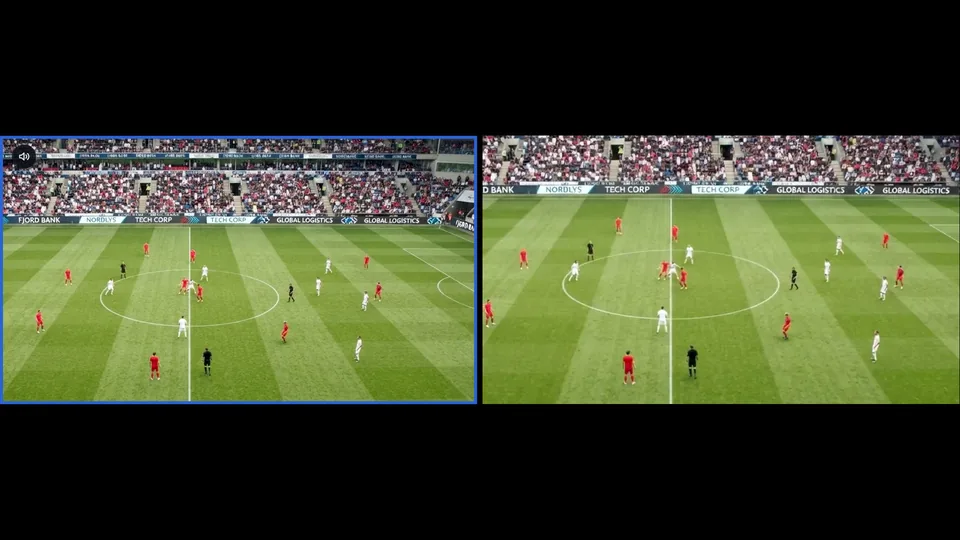
Multiview plays two live channels side by side, or one big and one small, with the sound on the one you choose.
Two channels side by side.
Android TV and Apple TV
Start the first channel.
Go to the channel list, the guide or search, hold OK on another live channel and choose Watch with ….
◀▶ moves the frame and the sound. ▲▼ changes the channel in the framed picture.
OK makes the framed picture full screen. Hold OK for Side by side, Big and small or Swap places.
Back ends multiview; the first channel keeps playing.
Two channels use two connections at once, so your playlist has to allow two. The app warns you if it allows only one.
Turn it off under Settings → Player (Android TV: Picture & sound → Multiview).
 PrettyTv